Recoloring Garments
Learn how to create new garment color variations from an existing AI model or pose without generating the full model again.
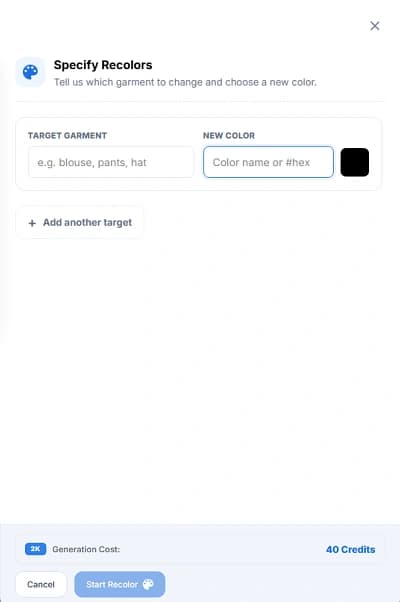
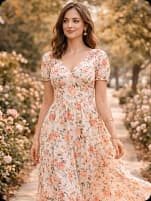
Original
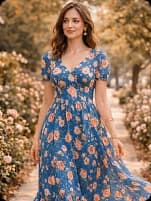
Blue recolor
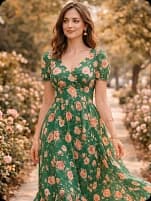
Green recolor
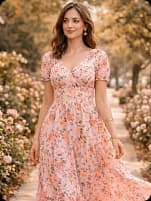
Pink recolor
Recolor Generation
Vtryon Recolor allows you to change the color of a garment from an already generated model or pose. This helps you create multiple catalog-ready color variants while keeping the same model, pose, background, lighting, and overall visual style.
When to Use Recolor
When the same garment design is available in multiple colors and you want separate visuals for each color option.
When you need more product images for e-commerce listings without recreating the complete model and pose again.
When creating social media posts, ads, or lookbook variations for the same design in different colors.
Start from an Existing Model or Pose
Open an approved model session or pose result from your generated image gallery. Recolor works best when the selected image has a clear garment area and proper lighting.
The model, pose, background, and framing are preserved from the selected image.
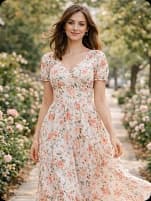
Generated master model
Pose variations
Select the Target Garment
In the Recolor window, enter the garment area you want to change such as shirt, jeans, kurti, dupatta, blouse, saree, pants, or jacket.
Be specific when entering the target garment name. For example, use "shirt" instead of "top" or "jeans" instead of "bottom".
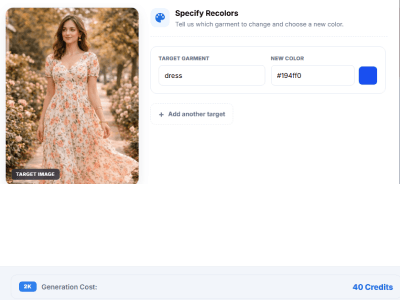
Choose the New Color
Enter a color name or color code for the selected garment. You can recolor one garment or add multiple targets if the image has more than one clothing item.
Use clear color names like black, navy blue, sky blue, maroon, beige, or use a hex color code for more control.
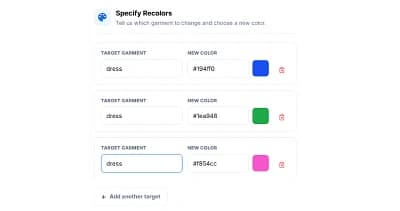
Generate and Review Recolor Results
Click Start Recolor to generate the new color variation. After processing, review the output to confirm that only the selected garment color changed and the model, pose, background, and garment structure remained consistent.
The best result keeps the same image composition while changing only the requested garment color.
Original dress
Blue recolor
Green recolor
Pink recolor