Control Everywhere
The Vtryon WooCommerce plugin now includes a storewide master switch, three storefront visibility modes, category-level controls, and product-level controls. This gives merchants more flexibility in deciding both who can see the try-on block and who can actually use it.
Summary Cards
Rules follow a top-down priority system.
Storewide control
Enable or disable virtual try-on for the entire site.
Visibility mode
Choose how try-on behaves for guests and logged-in customers.
Category control
Enable or disable try-on for full categories.
Product control
Enable or disable try-on for individual products.
How Visibility Logic Works
Visibility logic follows a master-first flow and only shows try-on when all required checks pass.
- 1Check whether Storewide try-on is enabled
- 2Apply the selected Visibility mode
- 3Check whether the category allows try-on
- 4Check whether the product is enabled
- 5Check whether a valid Garment ID exists
- 6If all required conditions pass, show the Try-On block and allow usage according to the selected visibility mode
Storewide Control
Storewide try-on is now the top-level control. When this setting is unchecked, the try-on button is hidden everywhere across the site, regardless of product or category settings.
Use case example: A merchant wants to pause the feature across the store temporarily without editing every product or category.
UI label suggestion: Enable virtual try-on for the entire site
Visibility Modes
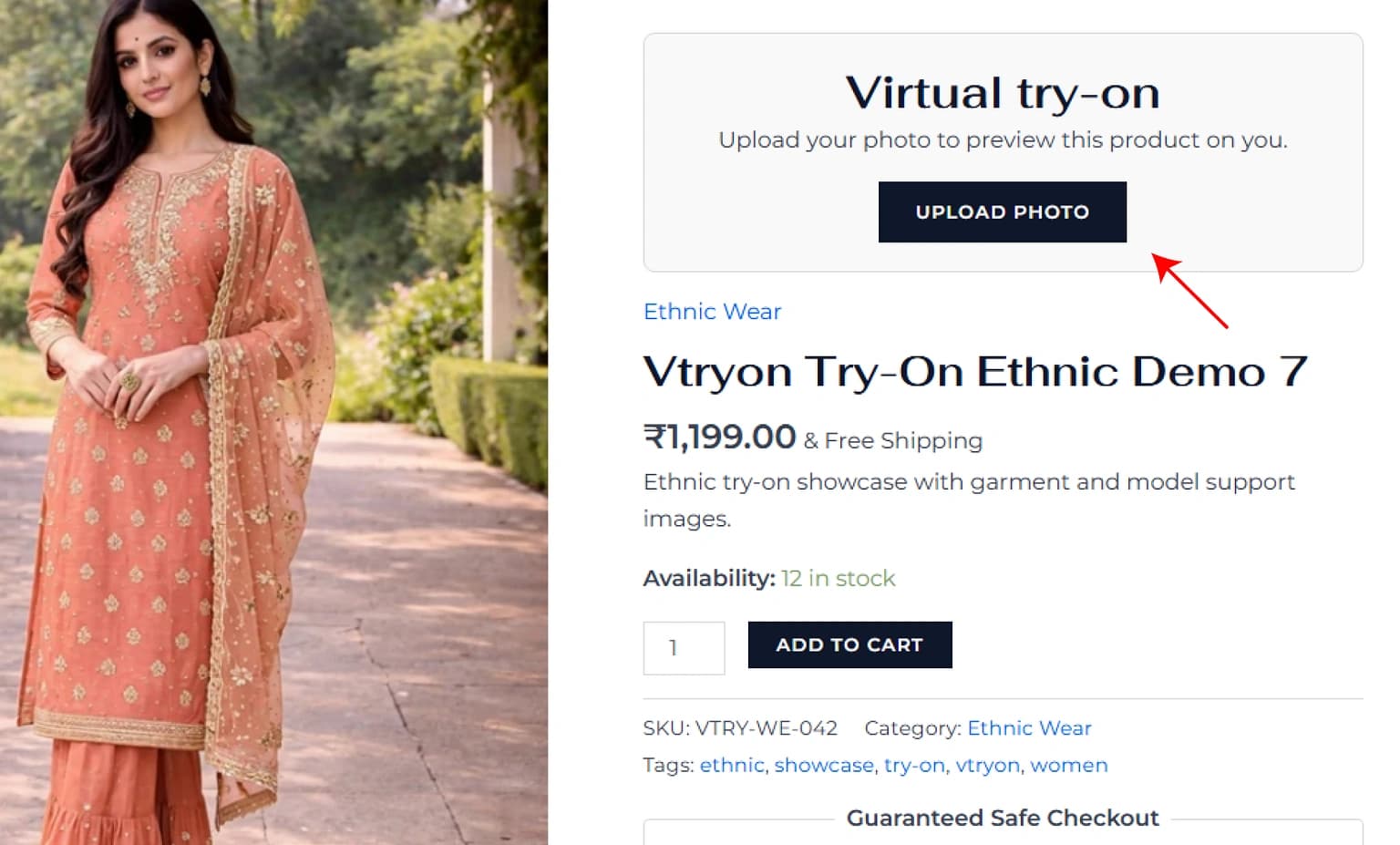
Everyone (guests and logged-in customers)
The try-on block is visible and usable for all visitors.
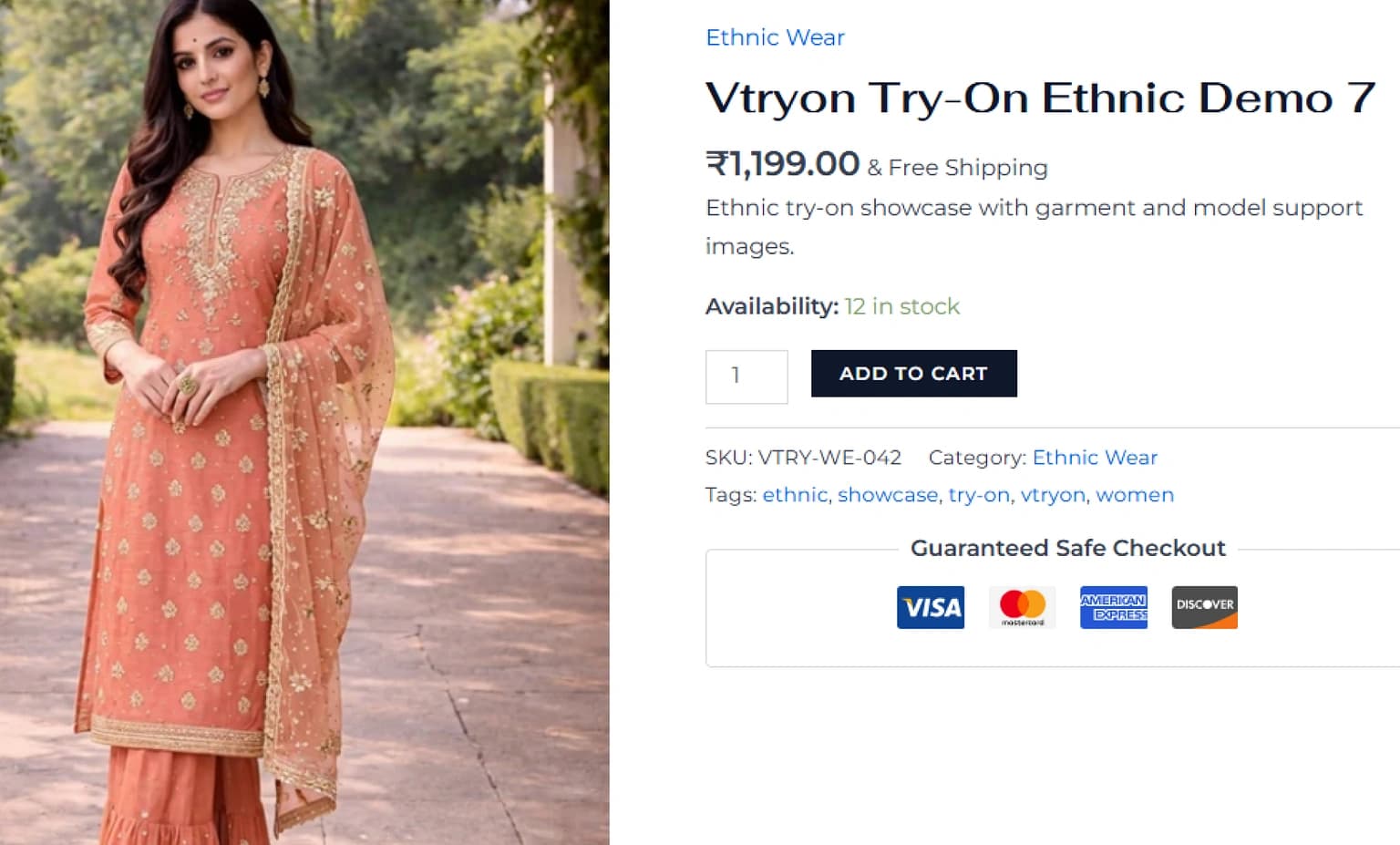
Only logged-in customers (hide try-on from guests)
Guests do not see the try-on block at all. Only logged-in customers can see and use it.
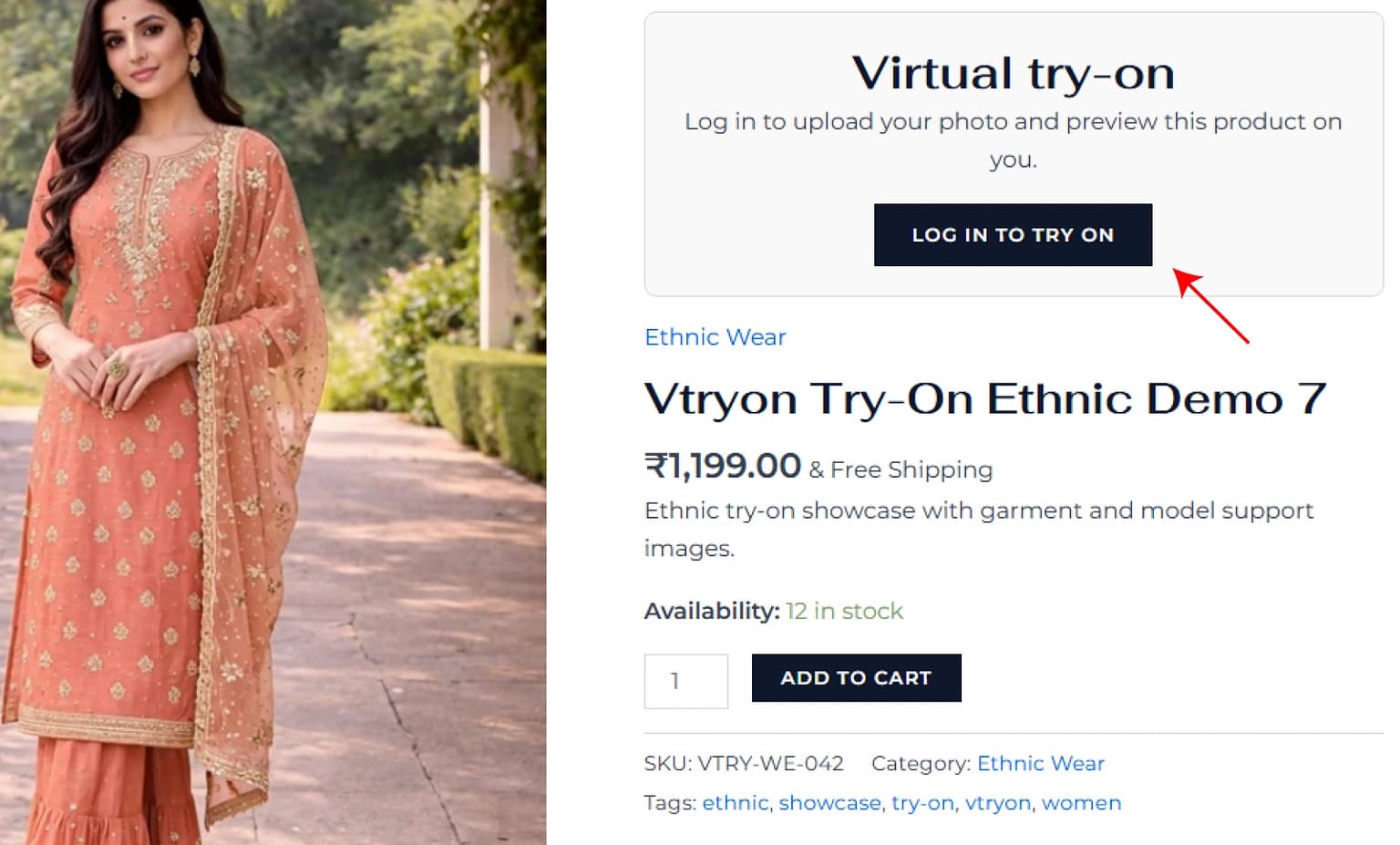
Show try-on to everyone; guests must log in to use it
The try-on block is visible to everyone, but when guests try to use it, they are prompted to log in first.
Troubleshooting
- •Guests can see the try-on block but cannot use it: The selected visibility mode may be Show try-on to everyone; guests must log in to use it. In this mode, the block is visible, but guest usage is restricted.
- •Guests cannot see try-on at all: Check whether the selected visibility mode is Only logged-in customers (hide try-on from guests).
Placement Control
Visibility decides whether the try-on block appears. Placement decides where it appears on the single product page. Merchants can choose from multiple placement options, with the default set to Inside summary — after add to cart.
- Before product summary
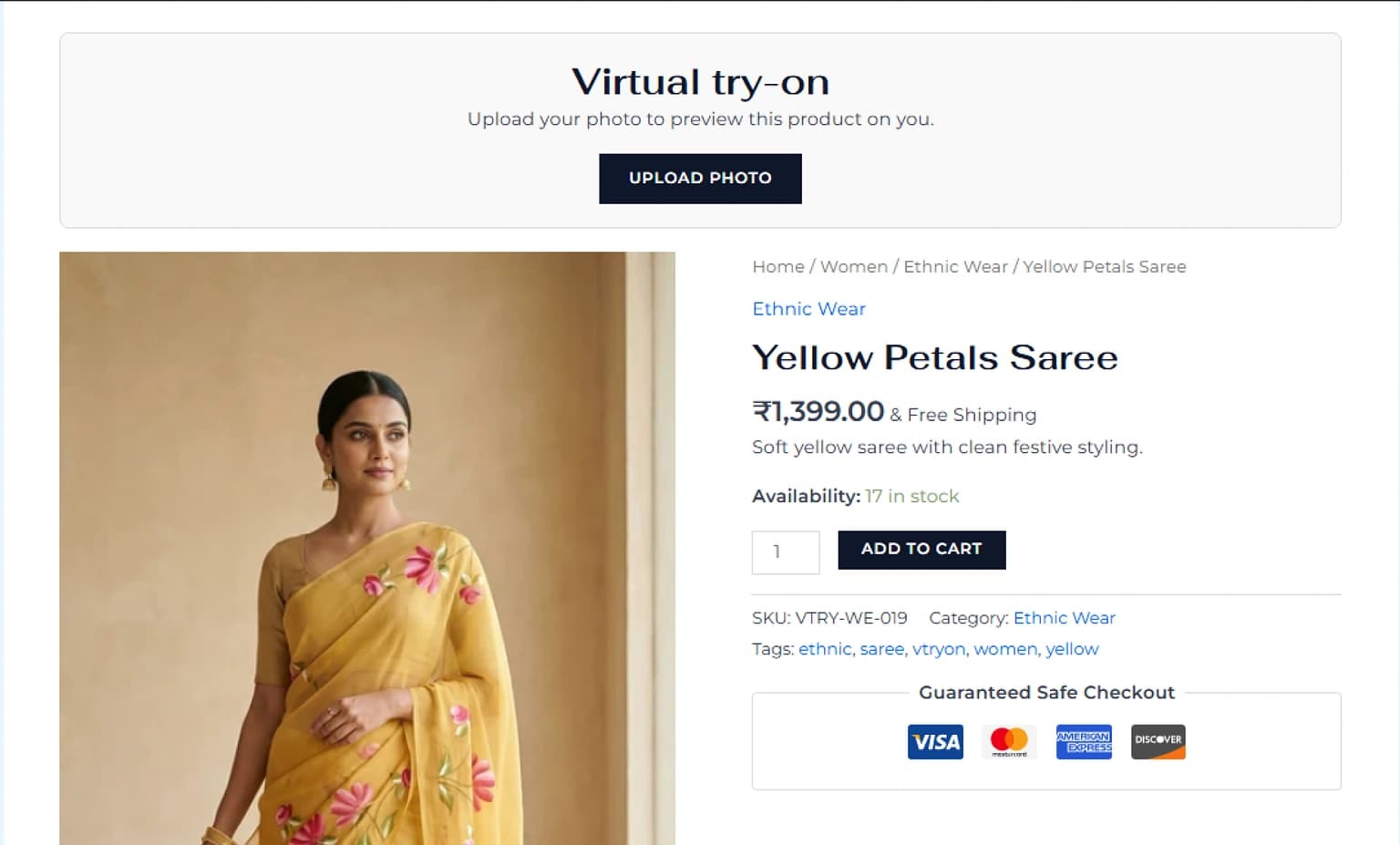
- After title
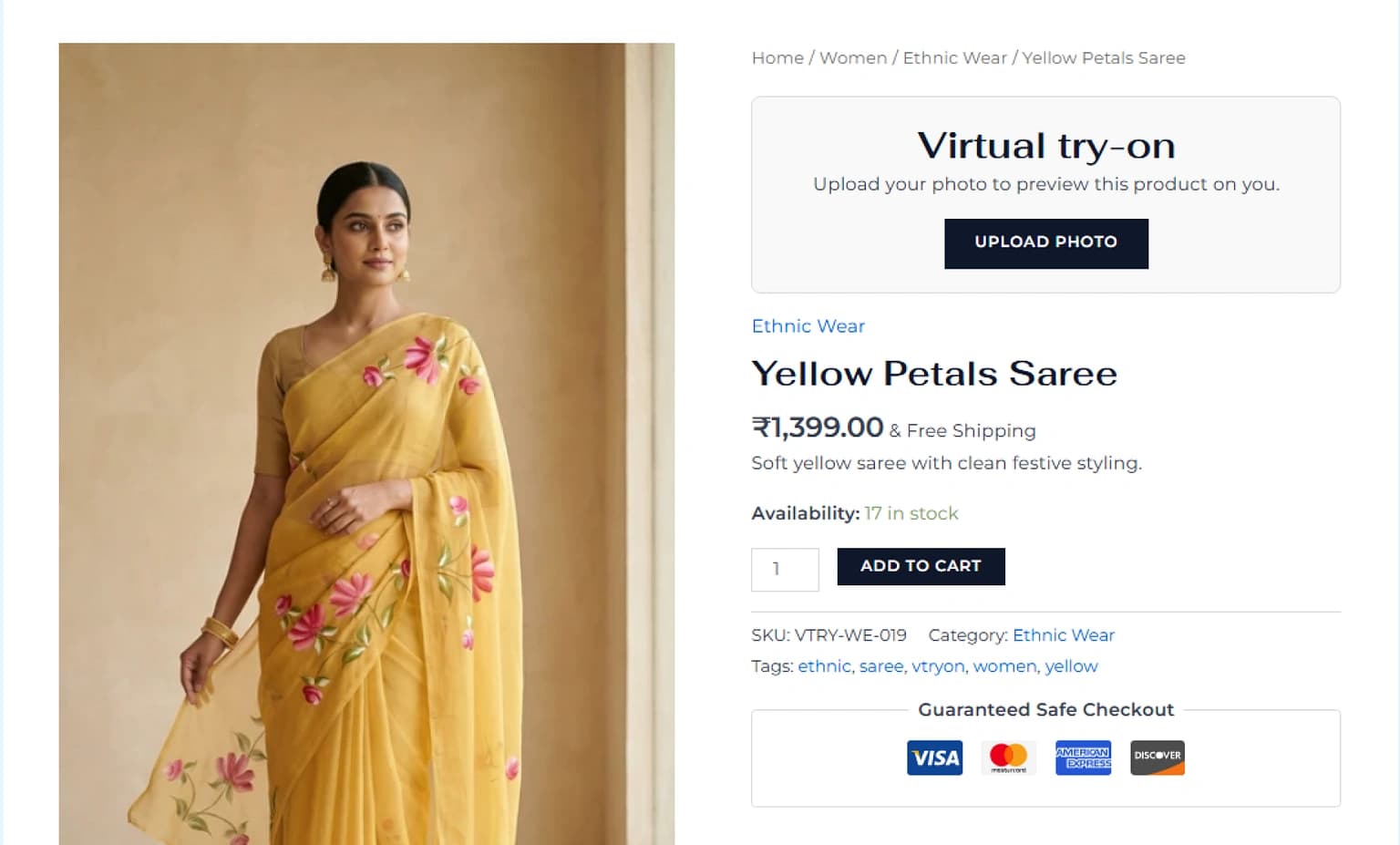
- After add to cart
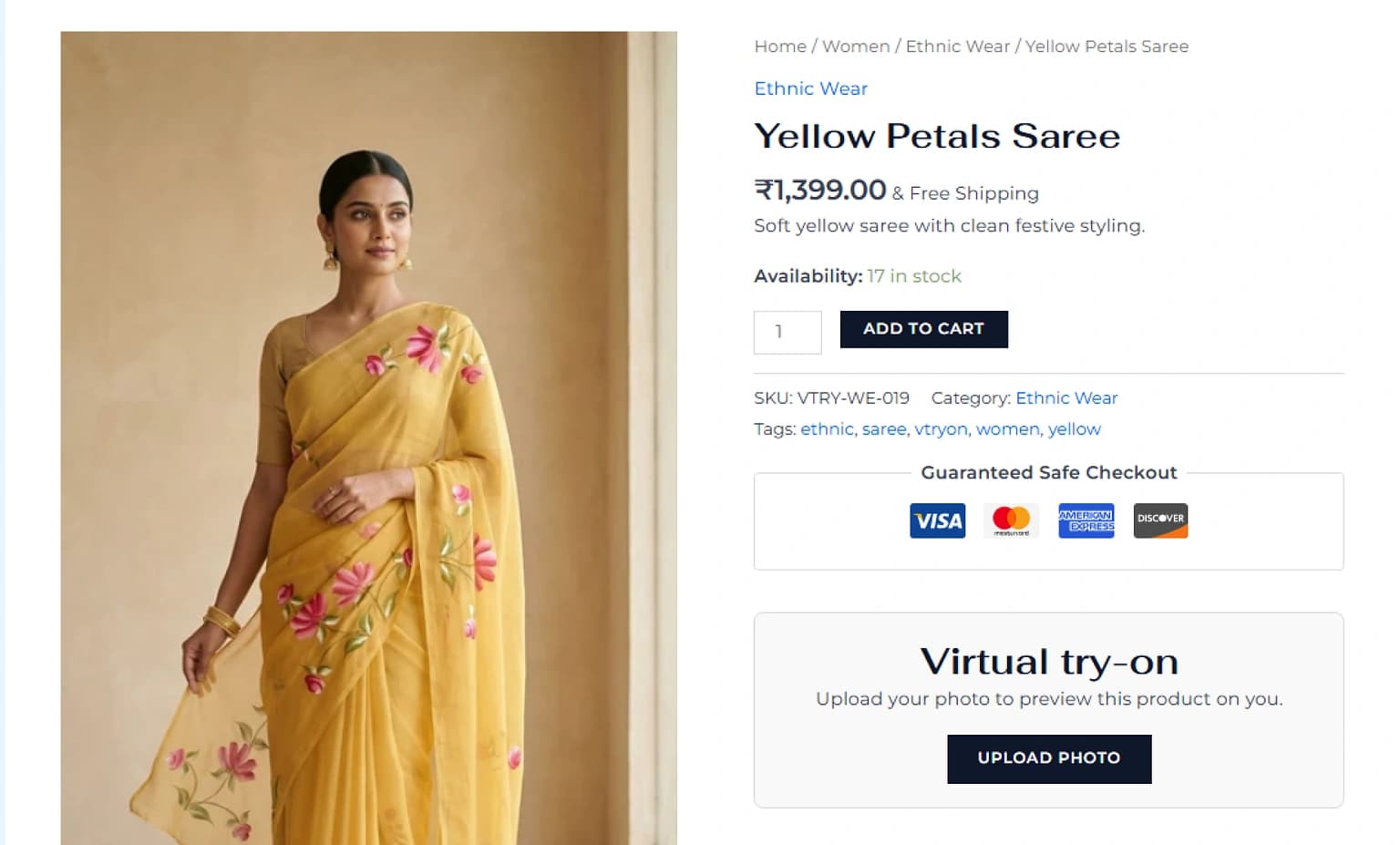
- After product meta
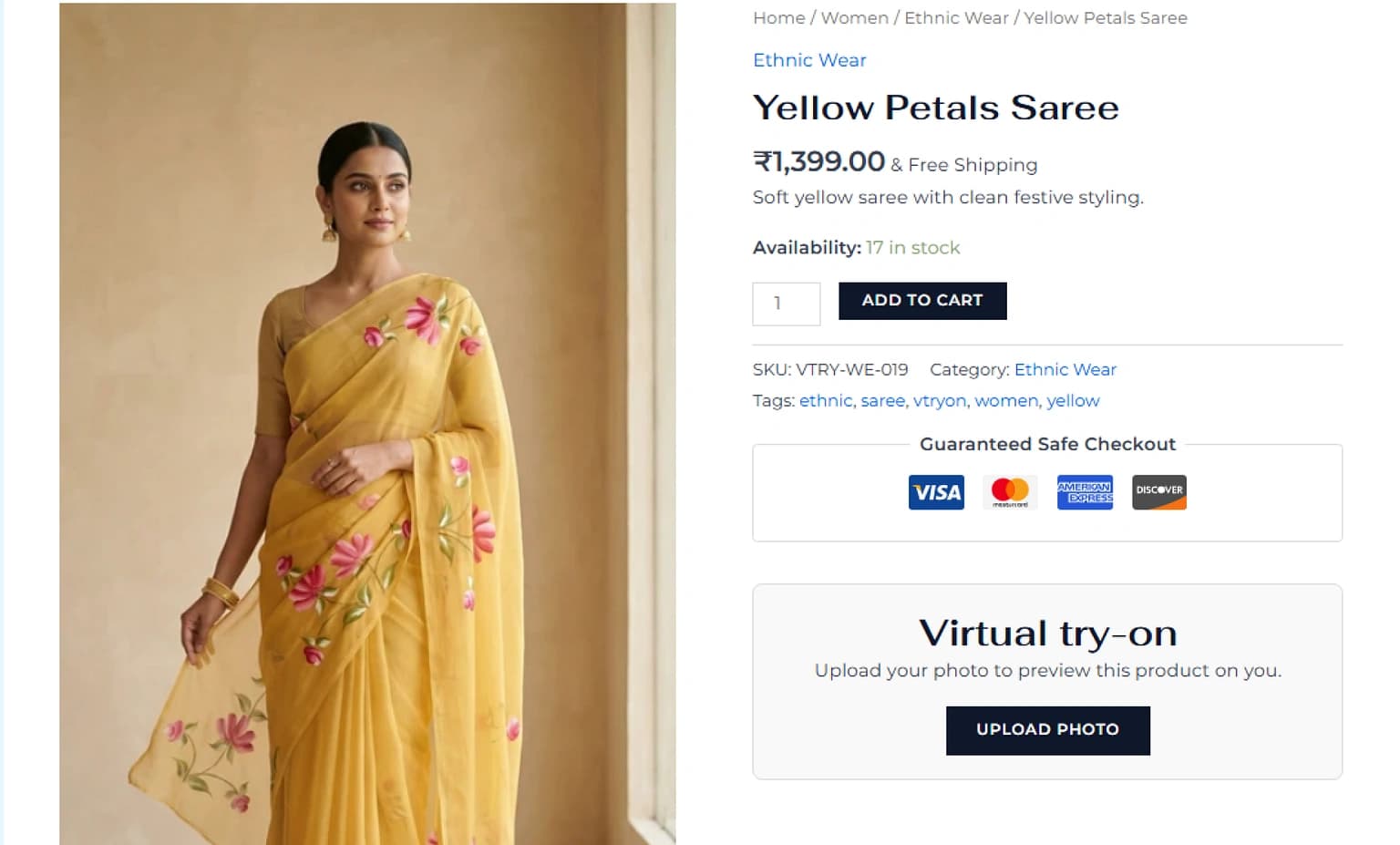
Download Result Behavior
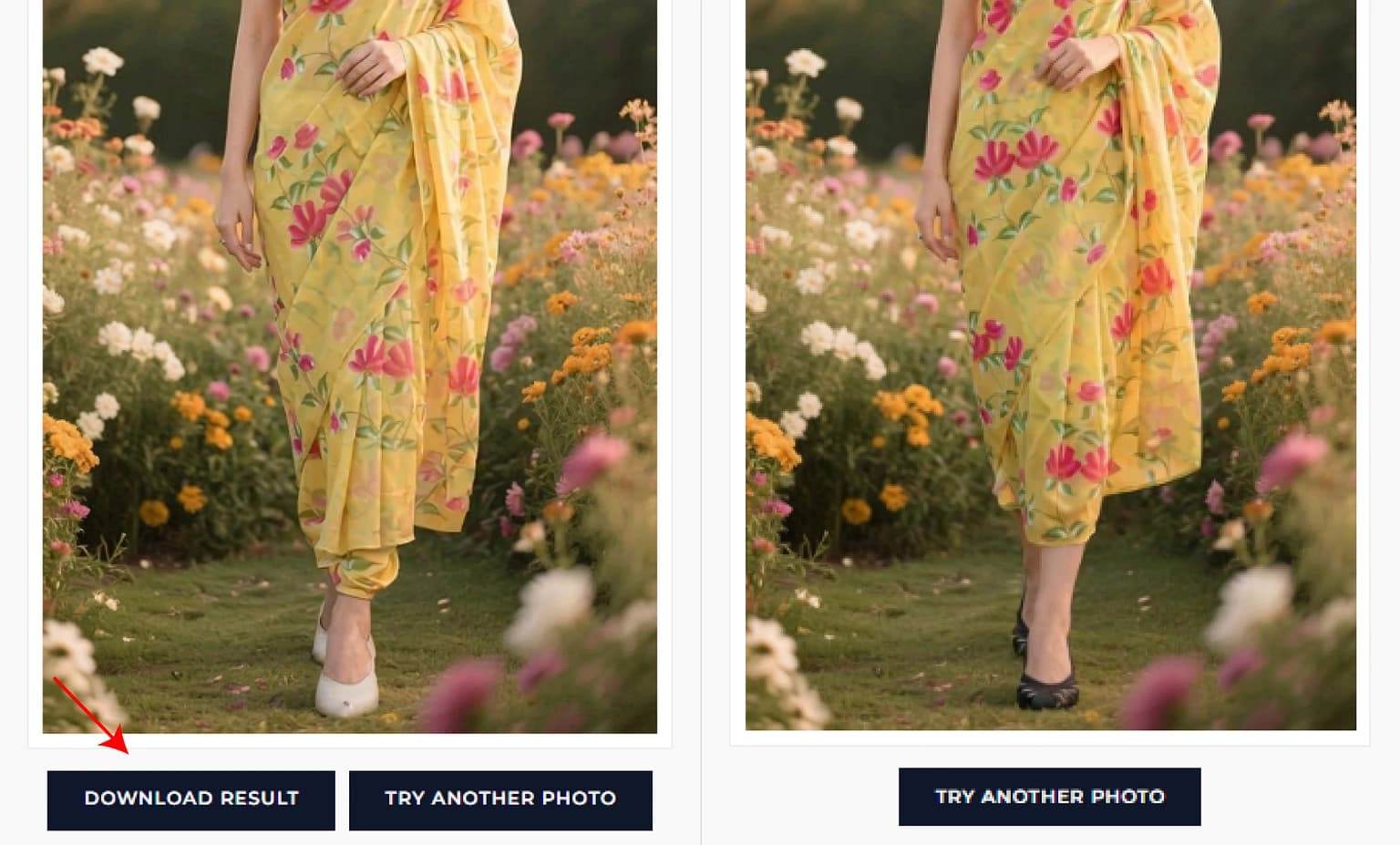
Visibility controls decide whether try-on is shown and who can use it. The separate Download result button setting controls whether customers can download the finished result after generation.
Where to Manage These Settings
Visibility and placement settings live inside the plugin admin area in WooCommerce. Merchants can manage the Vtryon API token, storewide try-on, visibility mode selector, placement, and debug mode from the same settings screen.
Use Case Scenarios
Scenario
“You only want Try-On available for the 'Spring 2026' collection.”
Vtryon Solution
Enable storewide try-on, then allow only the 'Spring 2026' category in category control.
Scenario
“You want to hide Try-On for clearance items to focus on full-price conversions.”
Vtryon Solution
Use product control for clearance items and set try-on off regardless of other rules.
Scenario
“You're updating your garment library and want to pause the feature.”
Vtryon Solution
Turn storewide control off. This removes try-on store-wide without deleting Garment ID mappings.
Scenario
“An item is out of stock and you don't want people trying it on.”
Vtryon Solution
Use product control to hide try-on for Out of Stock products.