AI Model Selection
The AI Model wizard is the first step in creating your digital catalog. Learn how to navigate the garment-to-model configuration process.
Wizard Overview
Our guided wizard ensures that every technical requirement is met for high-fidelity generation. It intelligently maps your garment to the chosen model parameters.
Required Inputs
- Clear garment image (Top, Bottom, or Full body)
- Minimum 1024x1024 resolution
- Neutral background (White/Grey preferred)
- Selection of at least one model ethnicity
Supported Flow Notes
• Custom Models: You can upload your own reference face for specific brand ambassadors.
• Pose Locks: Poses are locked during the model selection phase to ensure anatomical accuracy.
Wizard Lifecycle
Follow our intuitive 5-step process to transform your garment photos into studio-quality model images.
Select Audience (Adult/Kids)
Select Model Type
Choose the base human representation that matches your target audience. Select from various age groups and diverse ethnic categories to establish your brand's digital presence.
- Choose between Adult Male, Adult Female, or Kids categories
- Filter by height and build parameters for accuracy
- Establish the default facial character and tone
Support for PNG/WebP
Select or Upload Garment
Add the clothing item you want to visualize. Use our cloud library or upload high-resolution photography directly from your device for the best AI mapping results.
- Automatic transparent background removal
- Smart categorization (e.g., Kurti, Jeans, Saree)
Configure Ethnicity & Background
Choose Model Style
Refine the total look of your model. We offer pre-built styles optimized for fashion photography, including Indian, Western, and European aesthetics.
- Fine-tune skin tone and hair style
- Select background presets (Studio, Street, Nature)
- Enable 'Enhanced Face' for micro-expression details
Review & Generate
Double-check your parameters before our engine starts the rendering process. Finalize your quality settings to get the perfect studio-grade output.
- Preview summary of all selections
- Set generation quality (Standard vs Ultra HD)
- Estimate credit cost before starting
Open Results
Once generated, your high-fidelity assets are ready for your catalog. View the garment on the model and export it in any format required for your store.
- High-fidelity model preview and zoom
- Export in multiple aspect ratios (1:1, 4:5, 9:16)
- One-click high resolution 4K download
Select Model Type
Choose the base human representation that matches your target audience. Select from various age groups and diverse ethnic categories to establish your brand's digital presence.
- Choose between Adult Male, Adult Female, or Kids categories
- Filter by height and build parameters for accuracy
- Establish the default facial character and tone
[ Selection Grid Example ]
Select or Upload Garment
Add the clothing item you want to visualize. Use our cloud library or upload high-resolution photography directly from your device for the best AI mapping results.
- Automatic transparent background removal
- Smart categorization (e.g., Kurti, Jeans, Saree)
Upload Interface
Choose Model Style
Refine the total look of your model. We offer pre-built styles optimized for fashion photography, including Indian, Western, and European aesthetics.
- Fine-tune skin tone and hair style
- Select background presets (Studio, Street, Nature)
- Enable 'Enhanced Face' for micro-expression details
[ Style Sliders UI ]
Review & Generate
Double-check your parameters before our engine starts the rendering process. Finalize your quality settings to get the perfect studio-grade output.
- Preview summary of all selections
- Set generation quality (Standard vs Ultra HD)
- Estimate credit cost before starting
Open Results
The generated output is rich with interaction possibilities.
Base Model Preview
A high-fidelity central preview of the garment on your chosen AI model.
Pose Gallery
Browse different angles and dynamic poses of the same model/garment combo.
Session Details
View technical metadata, style and creation timestamps for each run.
Download Actions
Export results in various aspect ratios (1:1, 4:5, 9:16) and 4K resolution.
Video Creation
Animate your model for reels and TikTok with our secondary AI engine.
Bulk Re-Run
Quickly apply the same style to a different garment set with one click.
For Best AI Try-On Results
To ensure your garment design remains 100% accurate, please follow these Pro Production Tips.
Use a Plain Background
Prefer white or light neutral backgrounds. Avoid patterns, colors, or heavy shadows to preserve true garment colors.
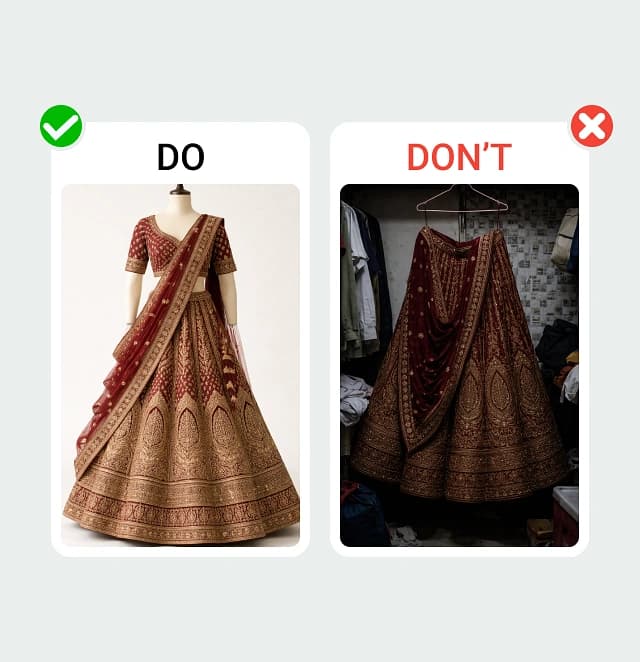
Clean backgrounds help AI preserve true colors.
Show the Full Garment
Upload a full front view. Ensure the entire outfit is visible; do not cut off the pallu, hemline, sleeves, or neckline.
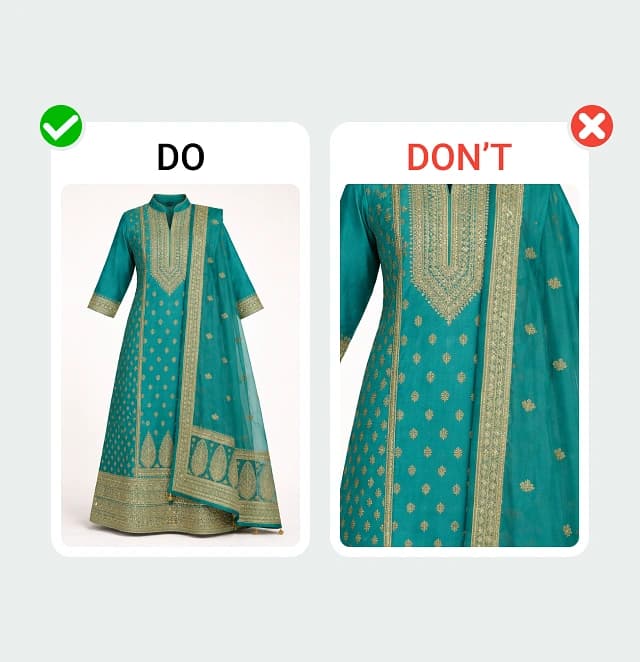
Missing areas may cause AI to guess the structure.
Add Close-Up Detail
Highly Recommended: Upload close-ups of embroidery and fabric texture to maintain exact motif placement.
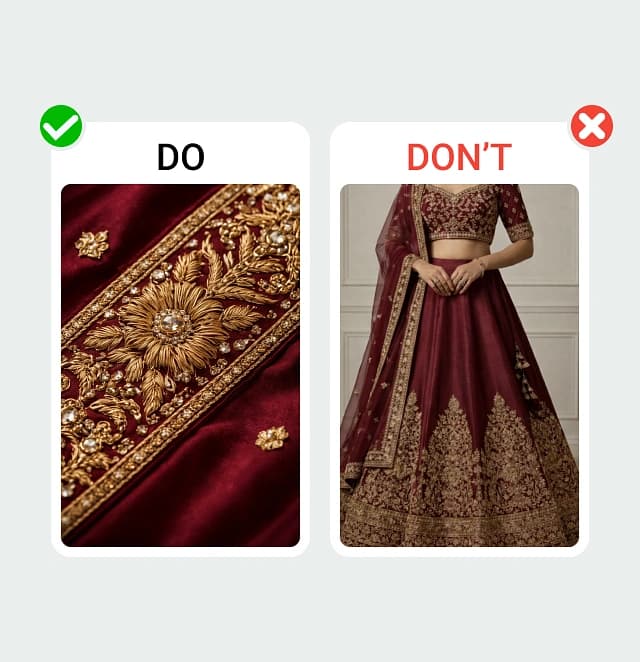
This helps maintain exact motif placement.
Avoid Filters & Editing
Do NOT apply Instagram filters or heavy contrast edits. Natural-color images only to prevent fabric color changes.
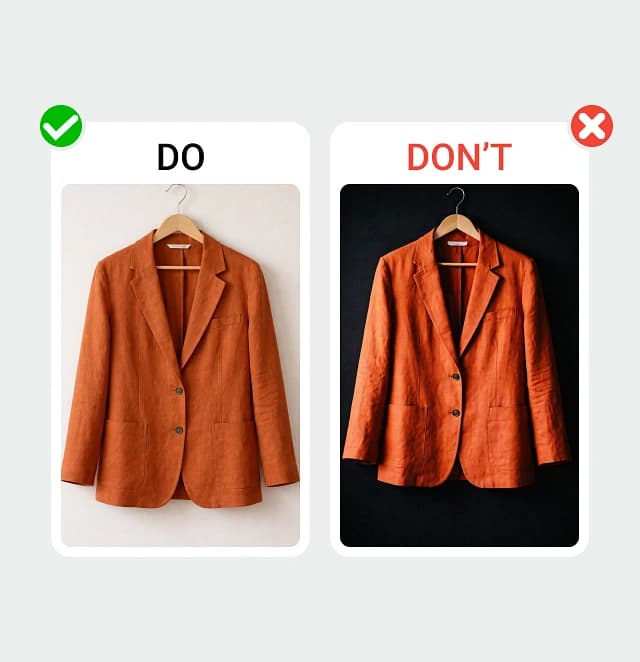
Filters can change original fabric colors.
One Outfit Per Upload
Upload only one complete outfit. Do not mix unrelated garments.
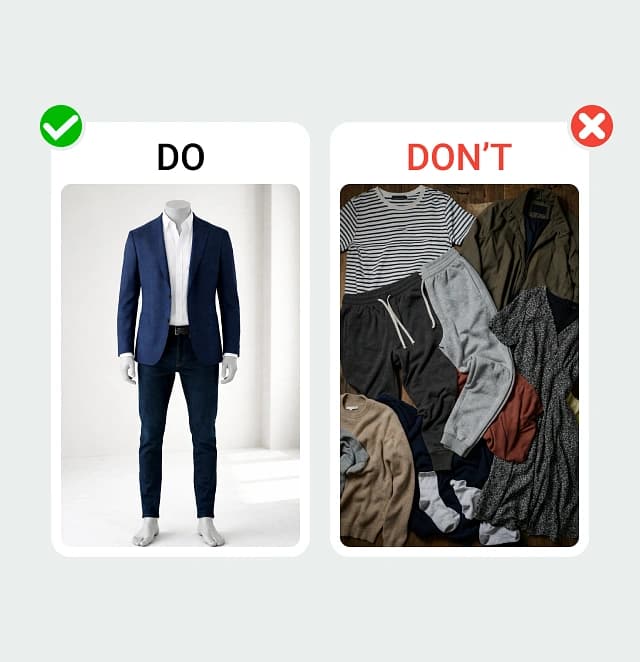
AI will ignore non-matching garments.
High-Quality Images
Use 2000px+. Garments should be sharp. Do NOT use blurry photos or WhatsApp-compressed images.
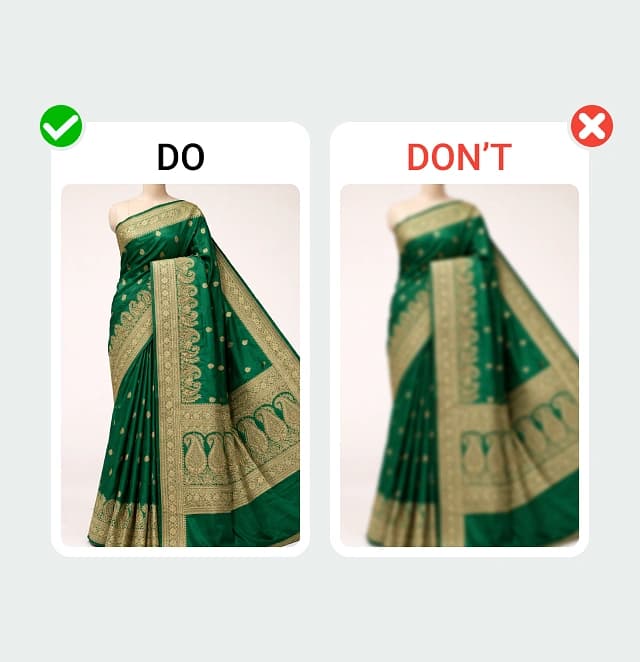
High resolution ensures better design accuracy.